The Content Manager is the main toolset for working with content in the Pro client. You can access this manager from various points in the application.
- Click here for an overview of the Content Manager in the Analyst client.
Content Manager Workspace
The content manager includes various views of the content system and a variety of tools for managing and manipulating content.
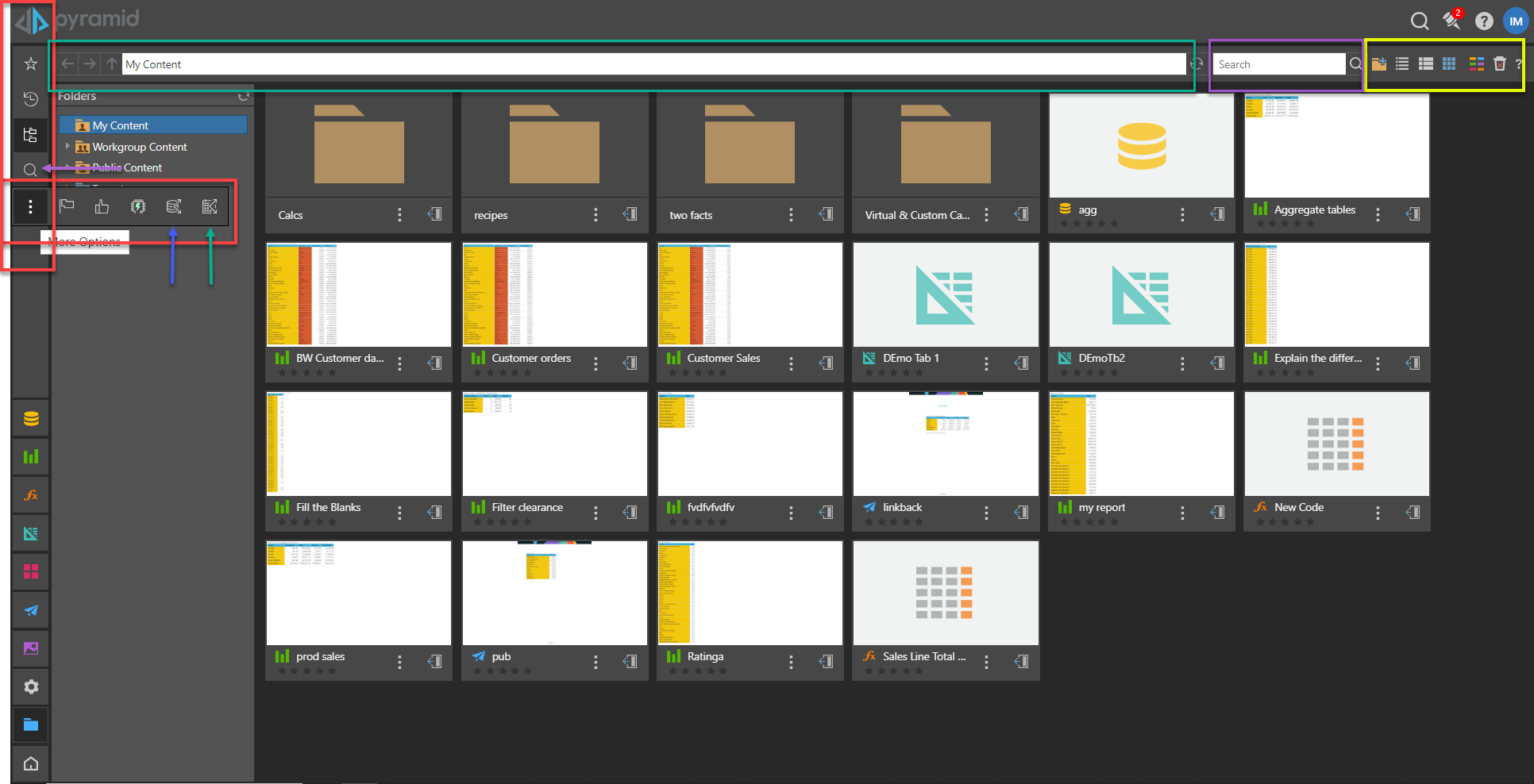
Opening the Content Manager
 Click the folder icon (yellow arrow above) to open the Content Manager.
Note: This icon is used throughout the system, making it easy to identify and access content-related tools and views throughout the application.
Content Views
Within the Content Manager, users can click on the Toolbox options (red boxes above) to access the various Content Views and the Other Managers (which includes an adjunct tool, the Materialized Data Manager, which is designed to manage a users databases and data models).
There are several ways to view content in the Pro client. Some views appear only within the Content Manager, some within the User Hub, while others may also appear within the context of each app as well. Each view has a specialized function.
User Centric
- Explorer - The Content Explorer is the master content view, offering a folder and item explorer interface that allows users to organize and manage their content.
- Favorites - Favorites is a flat list of up to 20 items (content items and folders) that have been flagged as favorites by the current user.
- Recent - Recents is a flat list of up to 20 content items that have been used recently by the current user.
System Centric
- Most Used - The items that the current user has access to and that are most used across the system by all users.
- User Recommended - The items that the current user has access to and that are most recommended in the system by all users.
- Auto Recommended - The items that the AI-driven suggestion engine has found that match the user's content "taste," based on all usage of the content on the system.
Content Search
The content Search is a specialized view that allows users to search through the CMS to find content items based on search criteria. The search results then form the basis of a content view with many of the same core capabilities of the other views.
Navigation Bar
The navigation bar, visible across most content views, provides access to navigation, breadcrumbs, folder actions, display mode options (view selection), filters, and more. Each option in the navigation bar is described in detail in its respective view page (linked above):

Content Actions and Tools
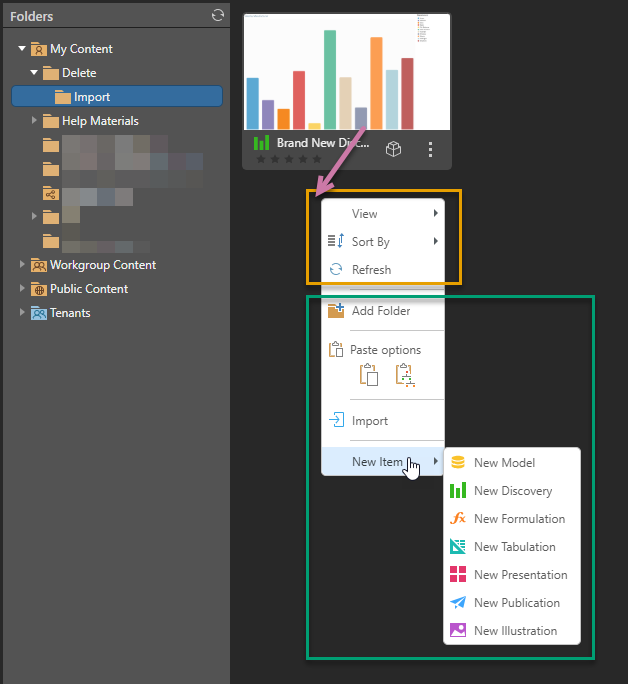
You can access different options in the Navigation Bar, the Metadata panel, and the context menus. Context menus can be opened from the folders in the tree, the content items in the main view, and by right-clicking the empty background space in Content Explorer. In each of the preceding cases, a different context menu opens:
General Actions and Tools
The general content actions include obvious things like Open, View, Copy, Cut, Paste, Delete and Rename and Pyramid-specific things like Add to Favorites, Share, and so on. These general actions are mostly common to all content item types, and many appear in all views. However, some functions are unique to some content types, some functions behave differently for different content types, and some functions may not be accessible from different views or places in the app.
The only general actions that are not directly included inside the content management views are related to save and print. These functions are presented within each app itself using the common interface (or using the App Tabs).
- Click here for more details on Context Menus
Actions
Unlike general actions, the Actions menu includes content tools that are more advanced capabilities for managing and manipulating content. These tools include wizards and functions like the Structural Analyzer, Data Source Changer, content versioning, content migration, embedding snippets, and content lineage. Like general content actions some tools vary by content type and are not accessible from all views.
Tip: Clicking Actions in the context menu or the Metadata button (yellow arrow above) opens the Actions panel to the right of the Content View. This panel lets you view metadata for the selected item or folder and access available actions from the overhead menus.
- Click here for more details about Actions and Metadata
Content Management Actions
You can right-click the empty background space in Content Explorer to open a context menu that provides access to actions for managing your view, creating folders, copying and pasting, importing items, creating new items, and so on. This menu offers options that are not specific to your existing items.
- Click here for more information about Content Management Actions
Other Managers
The Managers available from here are not real "content views" like the other Content Manager views, but they are accessed from the Content Manager Toolbox (to the top-left of the canvas).
User Task Manager
The User Task Manager, in the Content Management System, is a personalized interface for users to manage their own User Tasks, including setting them to Complete.
- Click here for more on the User Task Manager
Materialized Data Manager
The Materialized Data Manager (MDM) is a set of end-user tools for viewing and managing data models that the current user has created. Because it is still related to the business of managing content, albeit data, the MDM is grouped in with the content management tools for end-users in the Pro client.
- Click here for more on the Materialized Data Manager
Note: The MDM is a simplified version of the Data Source Manager found in the admin console, which offers a more complete, in-depth functional toolset for managing data, data catalogs, and security.
Personal Schedule and Subscription Manager
The Schedule and Subscription Manager serves as a collection of user-facing tools designed to help individuals view and manage their subscription jobs and related schedules. This feature allows users to oversee all their scheduled items for Publications, Data Alerts, Subscriptions and Data Models, providing functionality to start or stop jobs, edit schedules, and remove any unwanted schedules from the system.
- Click here for more on the Schedule and Subscription Manager